Connect Telegram Bot to OpenClaw Agent: Complete Configuration Guide
Configure Telegram as a messaging channel for your OpenClaw AI agent. Get your bot token, update openclaw.yaml, and deploy without managing infrastructure.
TL;DR
- Telegram Bot API is OpenClaw’s primary production-ready messaging channel
- Obtain token via @BotFather; never hardcode secrets into configuration files
- Update `channels.telegram` section in `~/.openclaw/openclaw.yaml`
- Restart the agent daemon to apply channel configuration changes
- Test with `/start` command in Telegram; monitor gateway logs for delivery confirmation
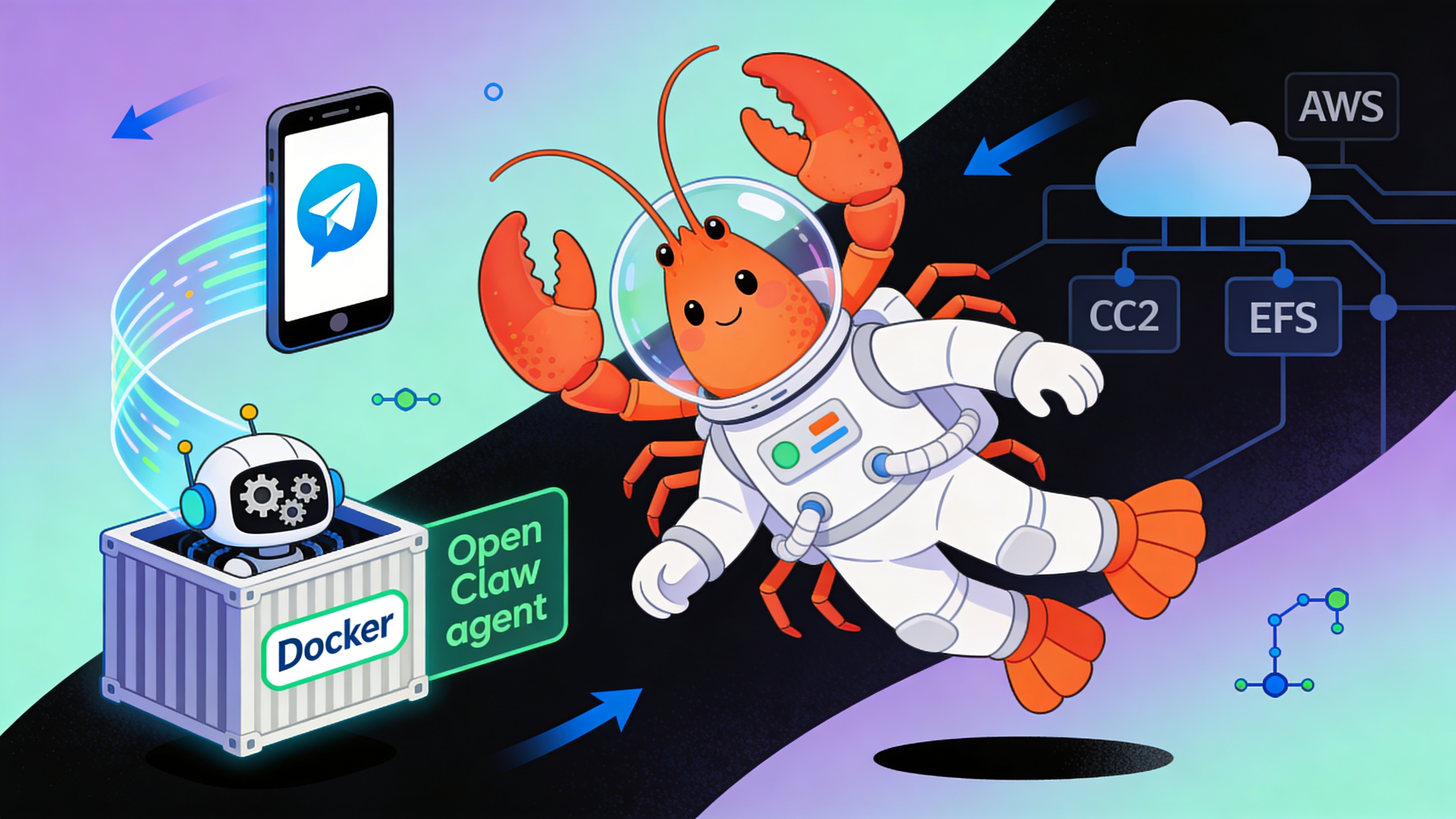
Messaging Channel Landscape
OpenClaw supports multiple messaging channels. Choose based on your audience, API stability, and operational requirements.
| Channel | Auth Method | Status | Message Rate Limit | Best For |
|---|---|---|---|---|
| Telegram | Bot API Token | ✅ Live | 30/sec | Production bots, public deployment |
| Discord | Bot Token + Gateway | ⏳ Coming Q2 2026 | 120/min | Community servers, async tasks |
| Slack | Socket Mode / Events API | ⏳ Coming Q2 2026 | 1/sec per method | Internal tooling, enterprise |
| QR Link (Web) | ❌ Not supported | N/A | Use Telegram instead |
Prerequisites
You need a running OpenClaw instance and a Telegram account. No local port forwarding required when using a managed gateway.
Step 1: Provision a Telegram Bot Token
Message @BotFather on Telegram. Send /newbot, choose a name, and copy the token. Export it as an environment variable.
# Example token from @BotFather
export TELEGRAM_BOT_TOKEN="123456:ABC-DEF1234ghIkl-zyx57W2v1u123ew11"

# Verify the token is set
echo $TELEGRAM_BOT_TOKEN
Step 2: Update OpenClaw Configuration
Edit ~/.openclaw/openclaw.yaml. Set channels.telegram.enabled to true and reference the token via environment variable.
# ~/.openclaw/openclaw.yaml
gateway:
  token: "${OPENCLAW_GATEWAY_TOKEN}"
  host: "0.0.0.0"
  port: 18789

channels:
  telegram:
    enabled: true
    bot_token: "${TELEGRAM_BOT_TOKEN}"
    webhook_path: "/webhook/telegram"
    # When deploying via easyclawd.com, the public URL is auto-generated
    # webhook_url: "https://your-id.easyclawd.com/webhook/telegram"
    allowed_chat_ids: []  # Empty allows all; restrict for private bots
    parse_mode: "MarkdownV2"

daemon:
  auto_reconnect: true
  health_check_interval: 30

logging:
  level: "info"
  channels: true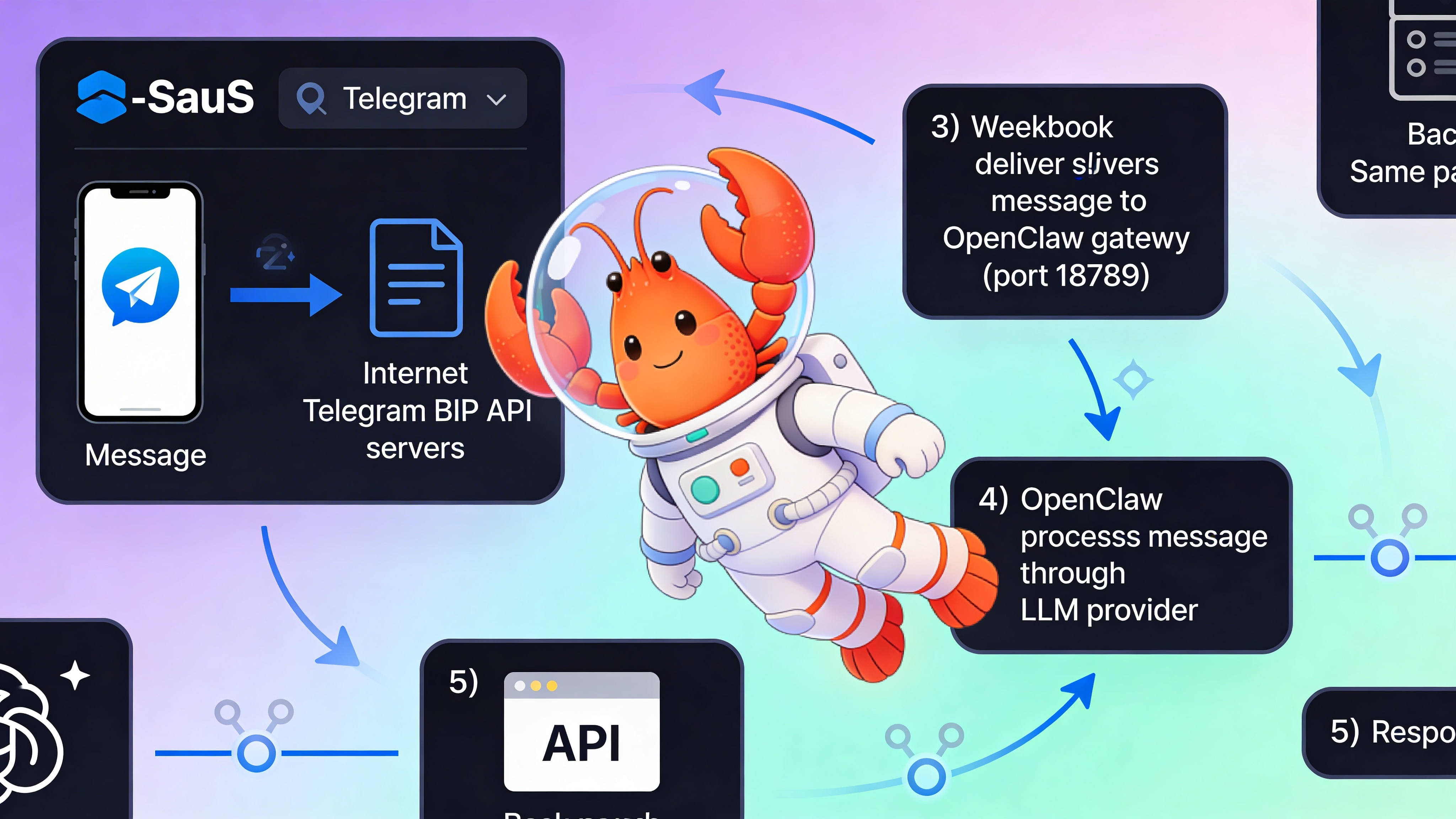
⚠️ Security Warning: Bot tokens grant full control of your Telegram bot. Never commit them to Git. Use environment variables or a secrets manager. Exposed tokens can be exploited to spam users or extract conversation logs.
Step 3: Restart Agent and Test
Restart OpenClaw to load the new configuration. Send /start to your bot on Telegram. Check the dashboard logs to confirm message receipt.
openclaw restartCommon Issues
- `401 Unauthorized`: Token is invalid or missing. Re-export `TELEGRAM_BOT_TOKEN`.
- `Webhook timeout`: Ensure the gateway is publicly reachable. Managed services handle this automatically.
- `403 Forbidden`: Chat ID is not in `allowed_chat_ids`. Check the log for the actual chat ID.
- No response after `/start`: Confirm `channels.telegram.enabled: true` and restart the daemon.
See Also
- OpenClaw Channel Configuration Reference — https://docs.openclaw.dev/channels/telegram
- Telegram Bot API Documentation — https://core.telegram.org/bots/api
- Deploying OpenClaw on EasyClawd — https://easyclawd.com/docs/deployment
Ready to deploy your OpenClaw AI assistant?
Skip the complexity. Get your AI agent running in minutes with EasyClawd.
Deploy Your AI Agent